Custom Report: Food Technicians Bulk Ingredient Shopping List by Practical Date
Note: to access and run custom reports within My Recipe Manager requires the 'Custom Reports' (role) to be assigned to the users account by a school administrator. To view the list of available roles and what they allow a user to do click here.
Hint: to reset the custom report back to its default setting first select the 'Reset' button then select the 'Submit' button.
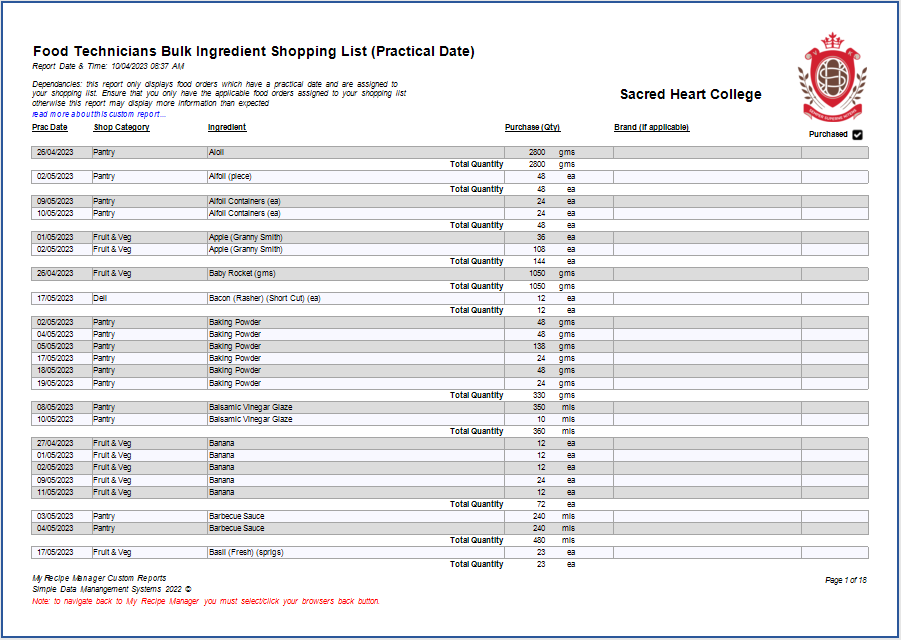
This custom report has been added to assist schools in producing a shopping list which can be filtered by shop category, ingredient name and practical date. This custom report was requested by Sacred Heart College (WA) who purchase certain ingredients in bulk for a specific period i.e. prac dates over a number of weeks or for a complete term.
To explain how this works we will use the example where you wish to bulk purchase all of the beef mince and chicken breasts that are listed in your food orders for term 3.
-
You will first need to create all of your food orders for term 3 ensuring that you assign each food order a prac date.
-
Assign all of your food orders for term 3 to your shopping list. Only food orders that are assigned to your shopping list will appear in the report.
-
Through the 'Custom Report' menu run the 'Food Technician Ingredient Shopping List (Bulk) (Shop Category, Ingredient & Practical Date)' report.
-
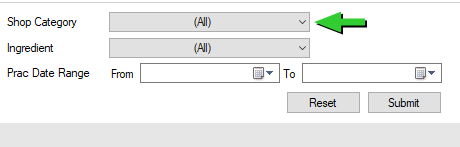
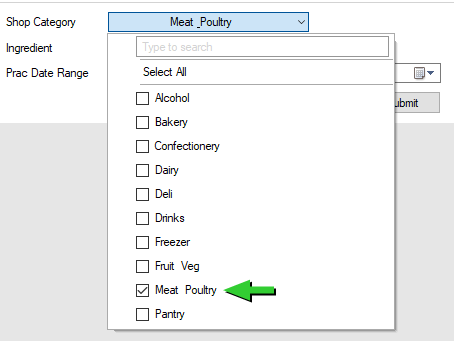
From the shop category drop down list select 'Meat & Poultry' making sure all of the other shop categories are unticked.
-
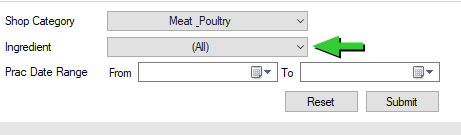
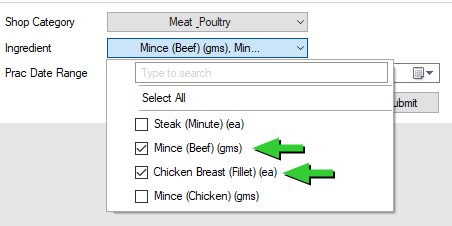
From the ingredient drop down list select beef mince and chicken breast making sure all of the other ingredients are unticked.
-
Enter a date range for your prac dates. The date range you enter will be dependant on the prac dates within your food orders.
-
Select the submit button.
The report includes the below information:
-
Shop Category
-
Ingredient Name
-
Practical Date Range
-
Purchase Quantity including a sub-total for the selected ingredients.
-
Brand (if recorded)
-
Purchased (a column when printed for manually ticking of the ingredient)
Dependences*
The functionality of this report is based on the below:
-
Only food orders that are assigned to your shopping list will appear in this report.
-
Food orders that do not have a practical date assigned to them will not appear in this report.
General Information and Example Screenshots
By default when the report first opens it will display the ingredients from all of your food orders (refer to below image).
To view the above image select it with your mouse pointer. To close the image either click the image for a second time or click outside the image.
To display the shopping list for a specific shop category select it from the 'Shop Category' drop down list
To display the shopping list for a specific ingredient select it from the 'Ingredient' drop down list
Enter a date range for your prac dates. The date range you enter will be dependant on the prac dates within your food orders.
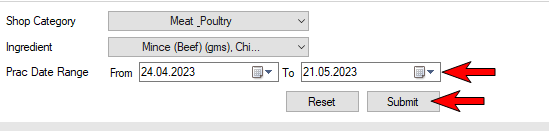
Once you have entered a 'Prac Date Range' select the submit button. This will refresh the report and display the shopping list for the selected ingredients (refer to below image).
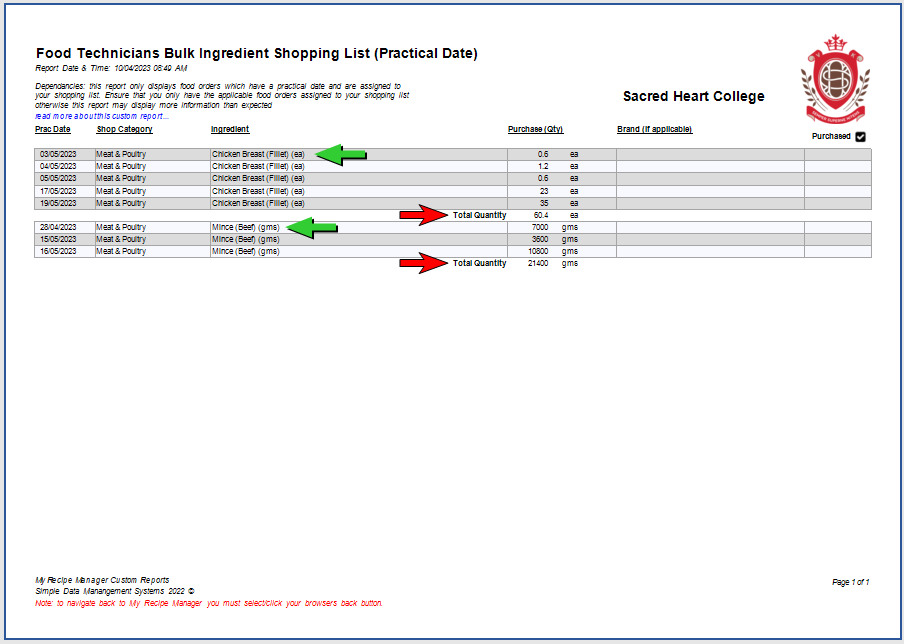
To view the above image select it with your mouse pointer. To close the image either click the image for a second time or click outside the image.