How to Search for an Ingredient
Please ensure that you read the below notes, hints and examples before reading the remainder of this topic.
Note: the 'Ingredient Search' functionality within My Recipe Manager requires the following role to be assigned to the users account by a school administrator: 'Teacher'. To view the list of available roles and what they allow a user to do click here.
Note: if you can't find an ingredient you can still create your recipe but you will have to come back to that recipe once you have been advised that the ingredient has been added into My Recipe Manager and add that ingredient to your recipe.
Hint: if you can't find the ingredient you are looking for try searching on a 'partial' word and not the full name of the ingredient. Refer to the below examples.
Example: searching for weetbix will not locate the ingredient but searching weet will locate it. In this case the reason why weetbix cannot be found is because it is listed under its correct spelling of weet-bix.
Example: to search for Amaranth you could search on amar which will locate it as well as any other ingredient that has amar in its name. Providing you have spelt the full name correctly and it is listed in My Recipe Manager in exactly the same way then searching on Amaranth or amaranth will also locate the ingredient.
Prior to creating a recipe you may wish to check if a particular ingredient is available for selection or how it is named in My Recipe Manager so that you can readily locate it. If the ingredient is not listed, is listed but not in the measure you require e.g. mls, gms, teaspoon. tablespoon, cup or each you can submit a support ticket requesting it to be added.
To search for an ingredient please follow the below instructions.
-
Hover your mouse pointer over the 'Recipe' menu and select the menu titled 'Ingredient Search'.

-
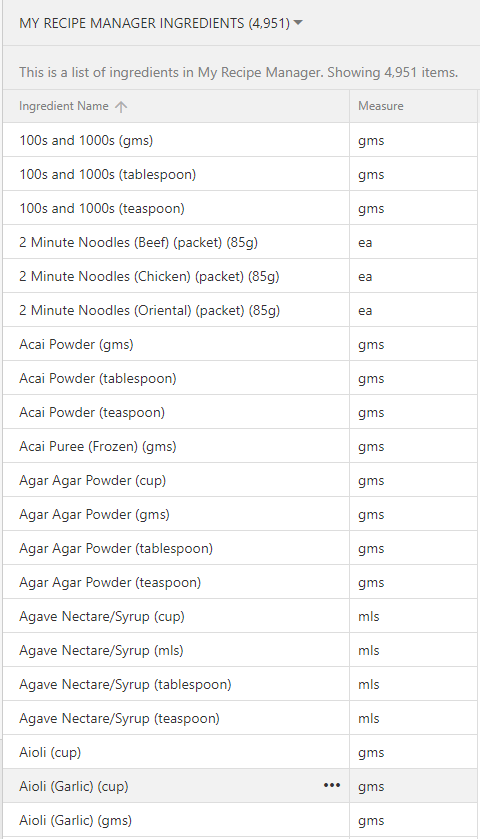
This will open the list of ingredients.
To view the above image select it with your mouse pointer. To close the image either click the image for a second time or click outside the image. -
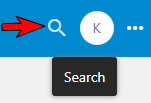
In the top right hand corner of the screen select the search icon.
-
This will open the search window.

-
Apply a filter to the list of ingredients by typing in the name or partial name of the ingredient that you wish to search for. In the below example we are searching for nectarine by searching on the part name 'nect'. After entering the search word initiate the search by selecting the search icon (magnifying glass icon) to the immediate left.

-
Any ingredient that starts with or contains the search word will be listed on screen (refer to below image). In the below example 16 ingredients were located as they all have 'nect' somewhere in their name. If nothing is displayed then there are no ingredients in My Recipe Manager that have the search word in their name.
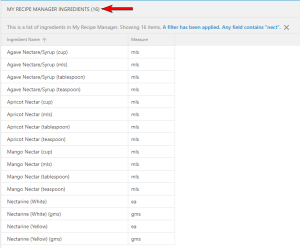
To view the above image select it with your mouse pointer. To close the image either click the image for a second time or click outside the image. -
To clear a filter that has been applied to the list of ingredients select/click the cross (X) to the right of 'A filter has been applied.........' (refer below image). This will return the list of ingredients to their original state when first opened.