How to Delete a Costed Ingredient
Warning: once you delete a costed ingredient there is no undo. If you accidently delete a costed ingredient you will need to cost that ingredient again.
Warning: deleting a costed ingredient will remove the cost of that ingredient from every recipe that uses that ingredient.
Note: the costing of ingredients within My Recipe Manager requires the following role to be assigned to the users account by a school administrator: 'Recipe Costing'. To view the list of available roles and what they allow a user to do click here.
Note: deleting a costed ingredient does not delete the ingredient itself, it only deletes the cost that has been applied to that ingredient. The ingredient will still be related to every recipe that you have applied it to but without a costing against it.
To delete a costed ingredient please follow the below instructions.
- Select the menu titled 'Recipe Costings' then select the menu titled 'Ingredient Costing' (refer below image).
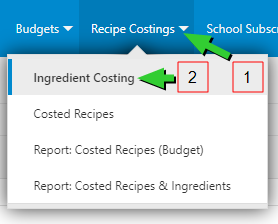
- You will be directed to the 'Costed Ingredients' page (refer below image)
- Locate the ingredient that you wish to delete.
- Select the three dot ellipse to the right of the ingredient that you wish to delete.
- Select the menu titled 'Delete'.
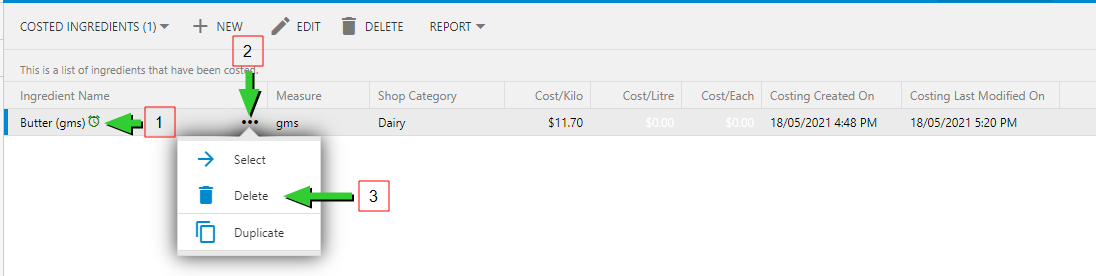
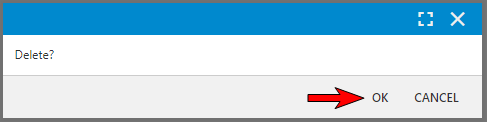
- A confirmation window will open (refer below image).
- Select the 'OK' button to delete the costed ingredient or
- Select the 'Cancel' button to cancel the deletion.
- Regardless of which button you select you will be returned to the 'Costed Ingredients' page. If you selected the 'OK' button the costed ingredient will no longer be listed on the ''Costed Ingredients' page because you deleted it. If you selected the 'Cancel' button then the costed ingredient will still be listed on the 'Costed Ingredients' page.