How to Update a Costed Recipe
Note: the updating of costed recipes in My Recipe Manager requires the following role to be assigned to the users account by a school administrator: Recipe Costing. To view the list of available roles and what they allow a user to do click here.
Note: you cannot change or select a different recipe name. If the costed recipe name is no longer required or has been entered by mistake then simply delete it from you list of costed recipes. To view the topic on how to do this click here.
Your schools costed recipes can be updated by following the below instructions.
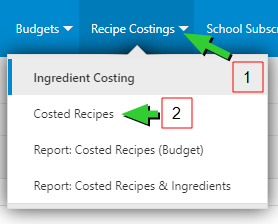
- Select the menu titled 'Recipe Costings' then select the menu titled 'Costed Recipes' (refer below image).
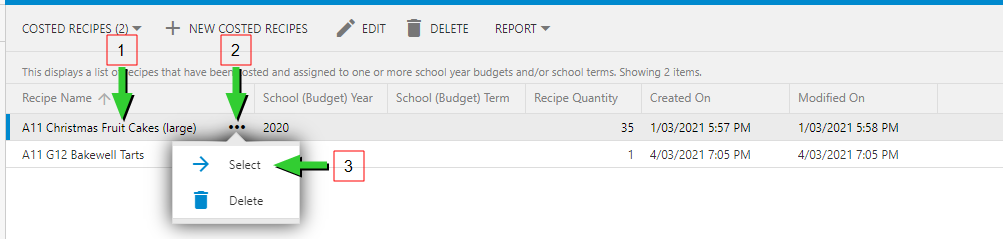
- You will be directed to the 'Costed Recipes' page (refer below image). This page lists the recipes that you have added to your 'costed recipes'.
- Locate the costed recipe that you wish to update. You can select the recipe by simply clicking on the recipe name with your mouse pointer or by
- Selecting the three dot ellipsis to the immediate right of the recipe name and
- Selecting the menu titled 'Select'.
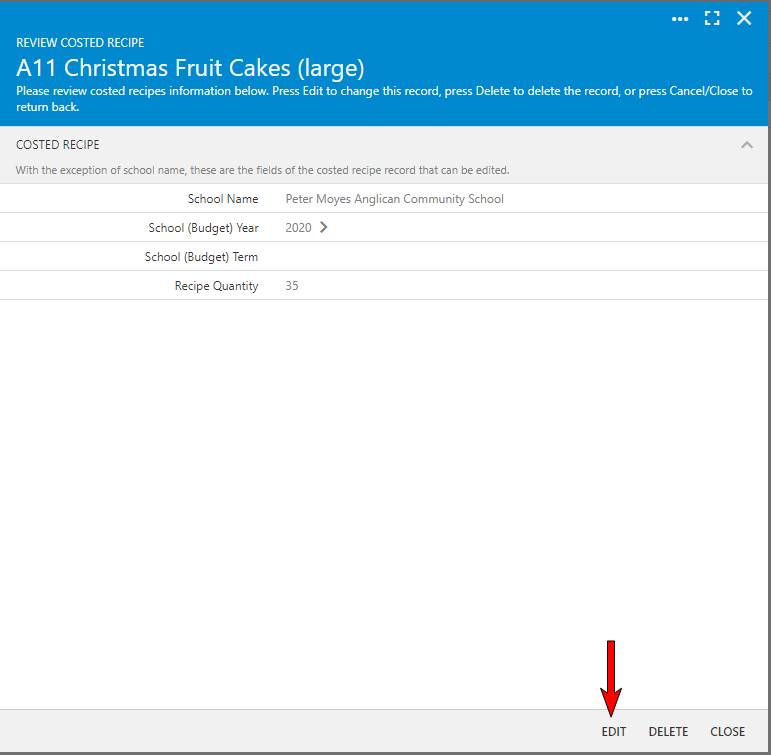
- Either of these two methods will open the 'Review Costed Recipe' window (refer below image).
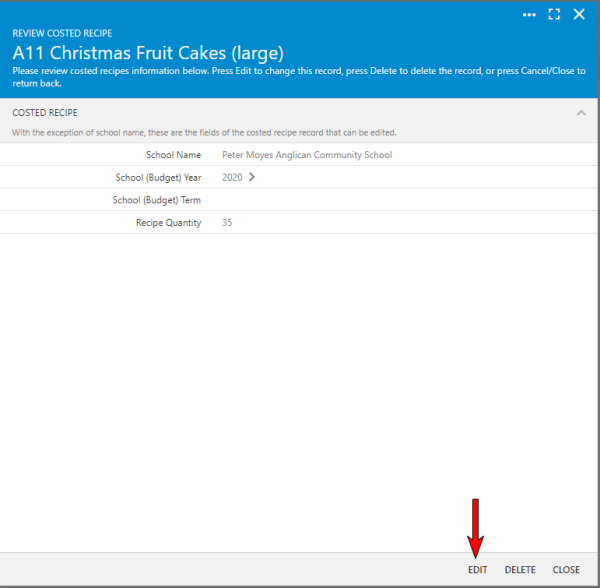
To view the above image select it with your mouse pointer. To close the image either click the image for a second time or click outside the image. - To edit the costed recipe select the 'Edit' button (refer above image).
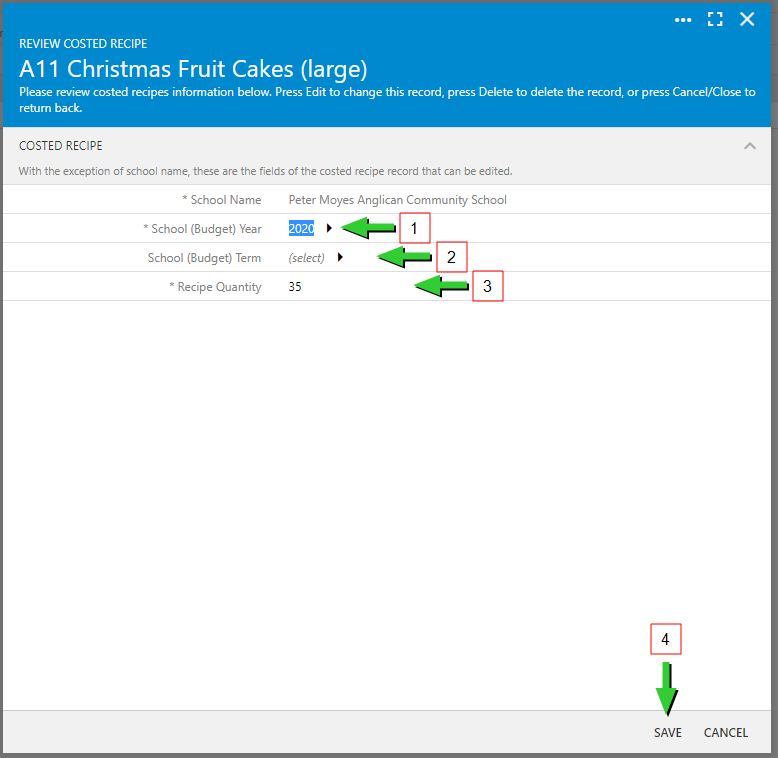
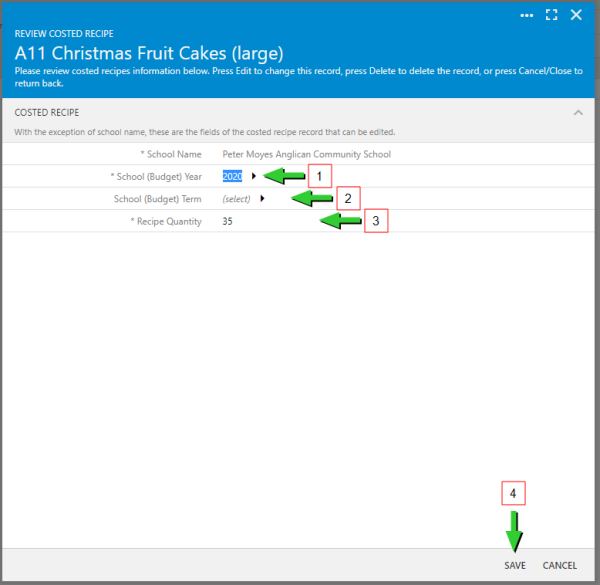
- You can now update (change) any of the three below fields:
- School (Budget) Year
- School (Budget) Term
- Recipe Quantity
- Once you have made your changes select the 'Save' button (refer below image).
To view the above image select it with your mouse pointer. To close the image either click the image for a second time or click outside the image.